
Merchant app · PC POS · Gpay Store
From orders to sales,
run it all in one place
Gpay Store is a merchant-only service for running menus, orders, payments, sales, the shopping mall and mileage in one place, through an app and a PC program.
Platform brokerage feeNone
※ Card payment fees and paid merchant services apply separately.

From the flag out front
to the table QR
The flag tells customers at the entrance that you're an official merchant.
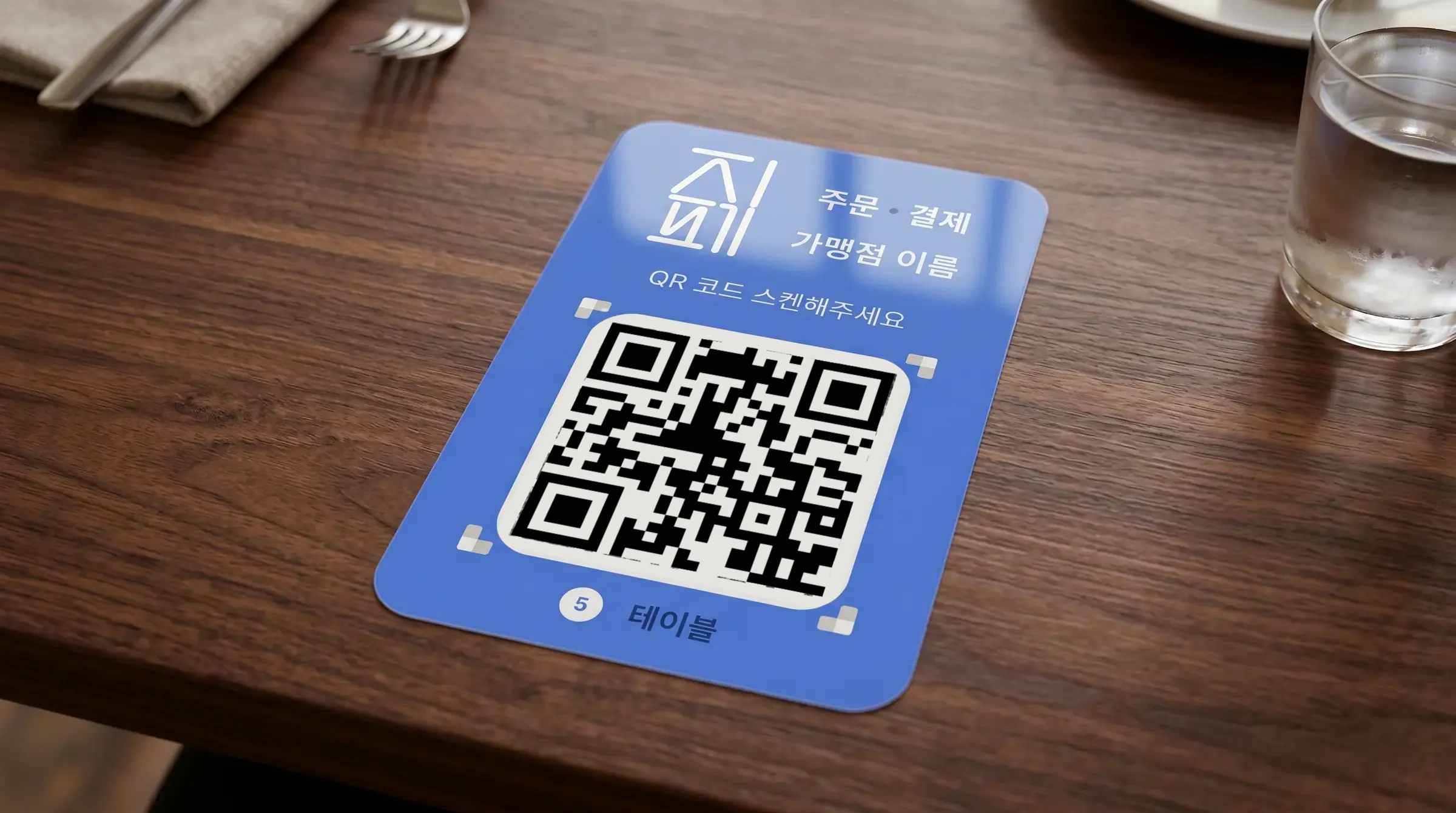
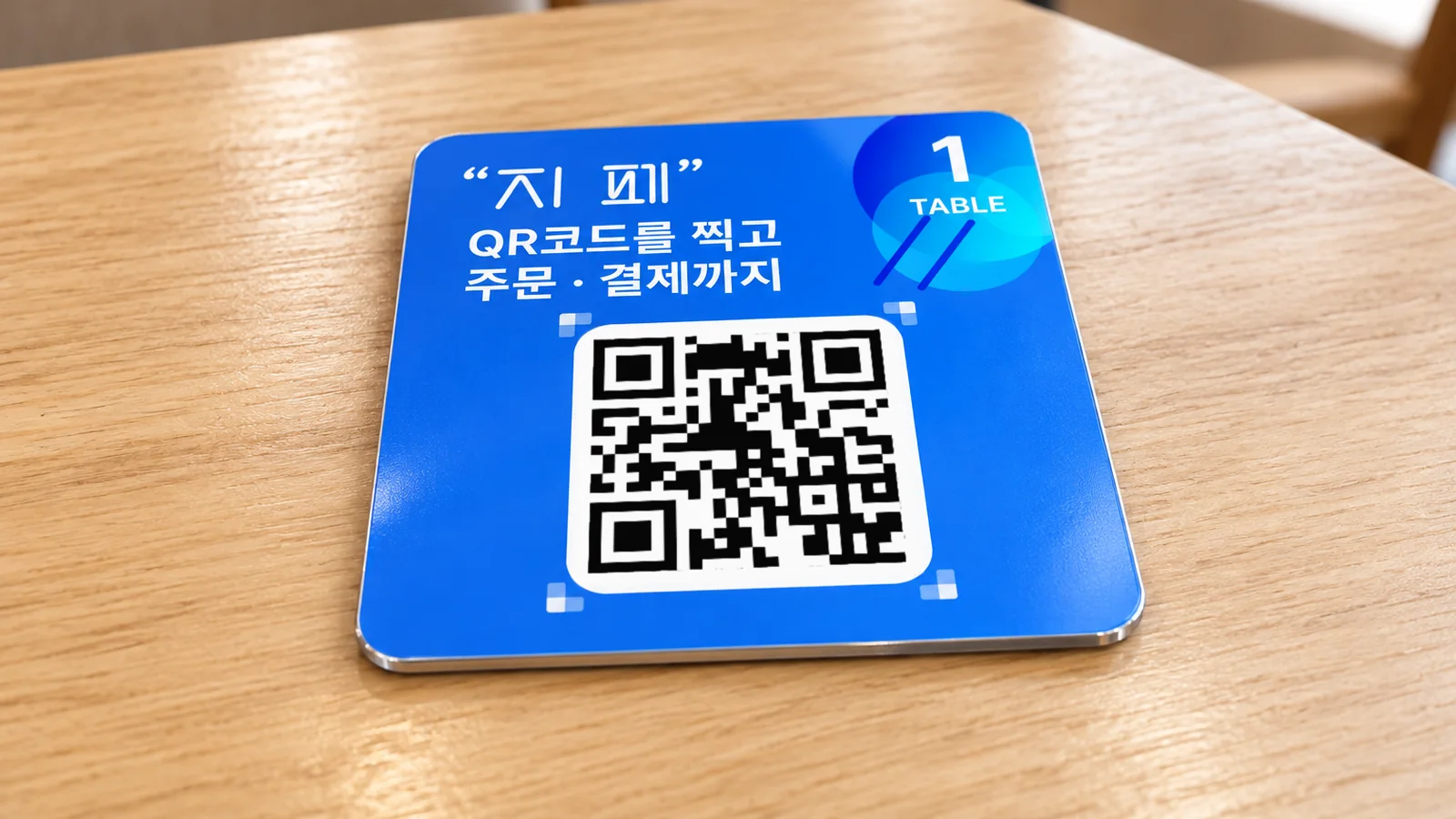
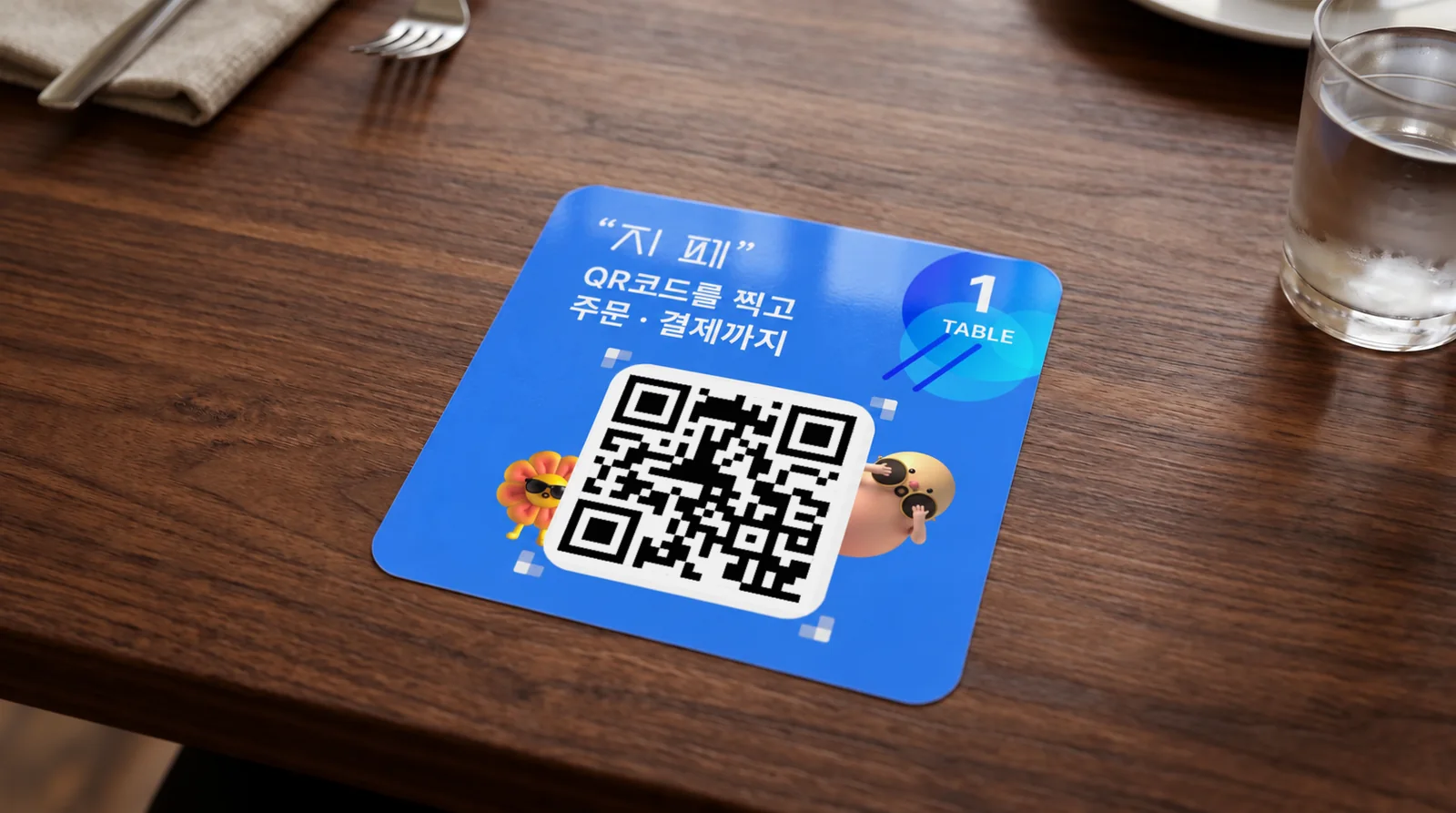
Put a QR on each table
and ordering begins
Customers scan the QR at their seat, add items and order right away.
- Set the number of tables in the app, then save and print the table QR codes
- Sticker and stand options are listed under Add-on services
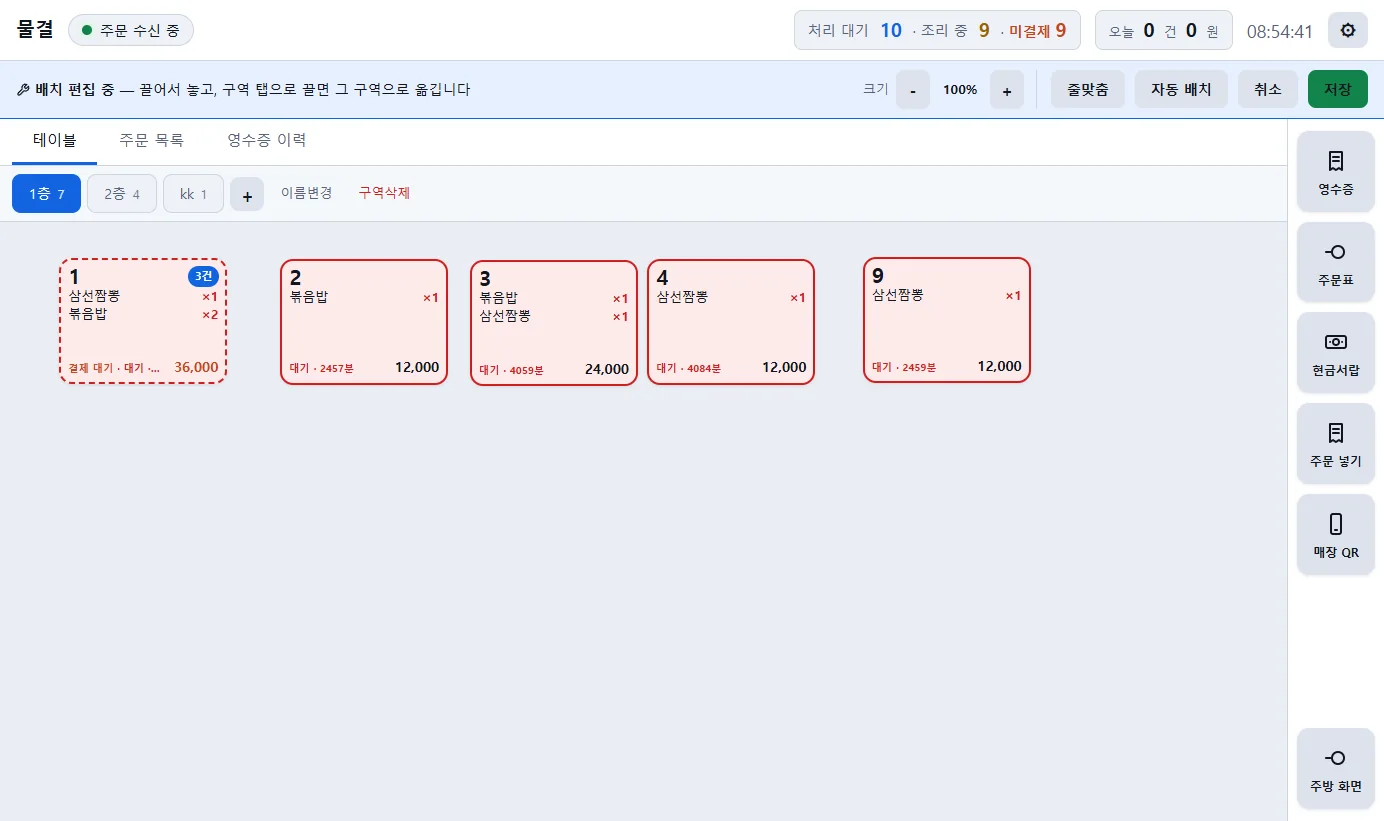
New orders by sound,
status by color
When a customer pays, the order appears on the POS with an alert sound. Order, cooking and payment status are color-coded, and new orders go straight to the kitchen screen and a paper order slip.
- Just tap “조리 시작” (Start cooking) and “서빙 완료” (Served)
- Progress is passed on to the customer's phone too
- Payment QR · Cash · Receipts · Cash drawer
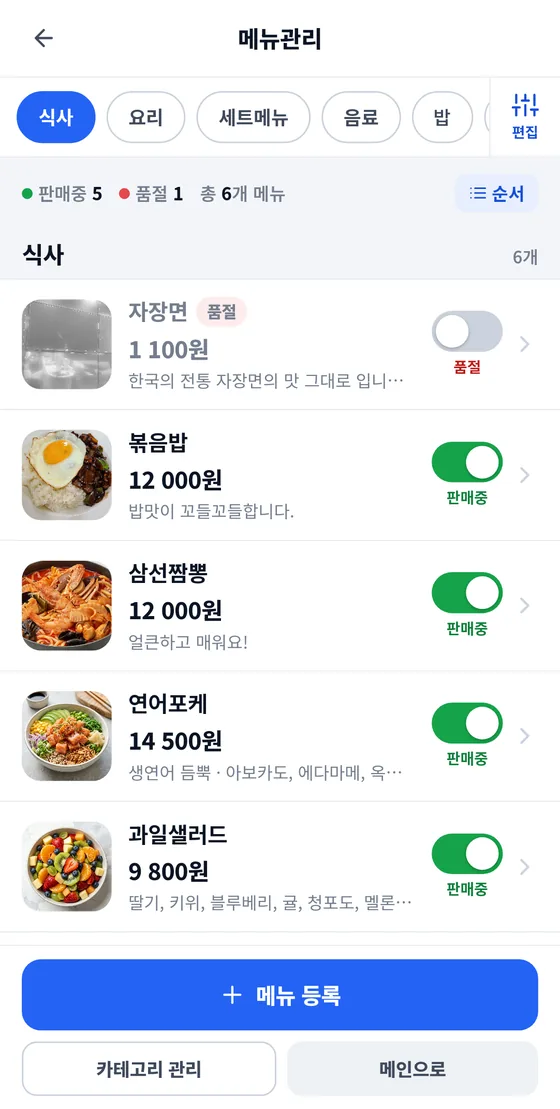
Photos, prices and sold-out status,
right from your phone
Changes show up in the customer app right away.
- Menu management and display order by category
- Mark sold out and resume sales with one button
- Open and close order-taking with one switch · Set takeout availability
Menu items you register
show up in AI ordering too
Register menu items and prices, and they're included in the AI's answers when customers ask.
AI answers use an external AI service (OpenAI).






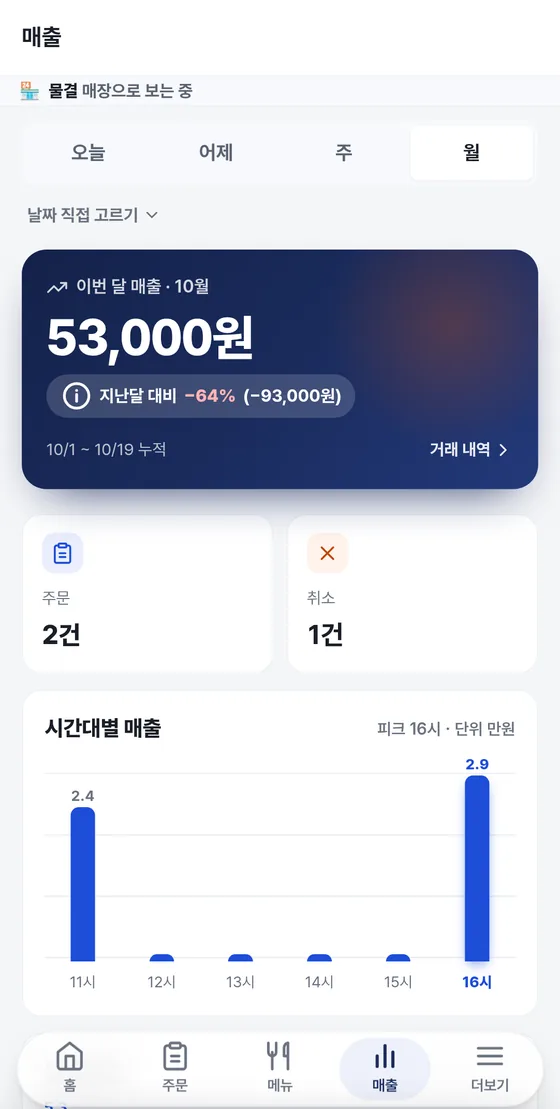
Today's business,
at a glance on the home screen
See today's sales, orders and top-selling items right on the app home, and pick a period to check reports by time of day, menu item and card issuer.
- Sales by day, week and month
- Reports by time of day, menu item and card issuer
- Payment QR and amount on the customer display
Run the shopping mall
and mileage yourself
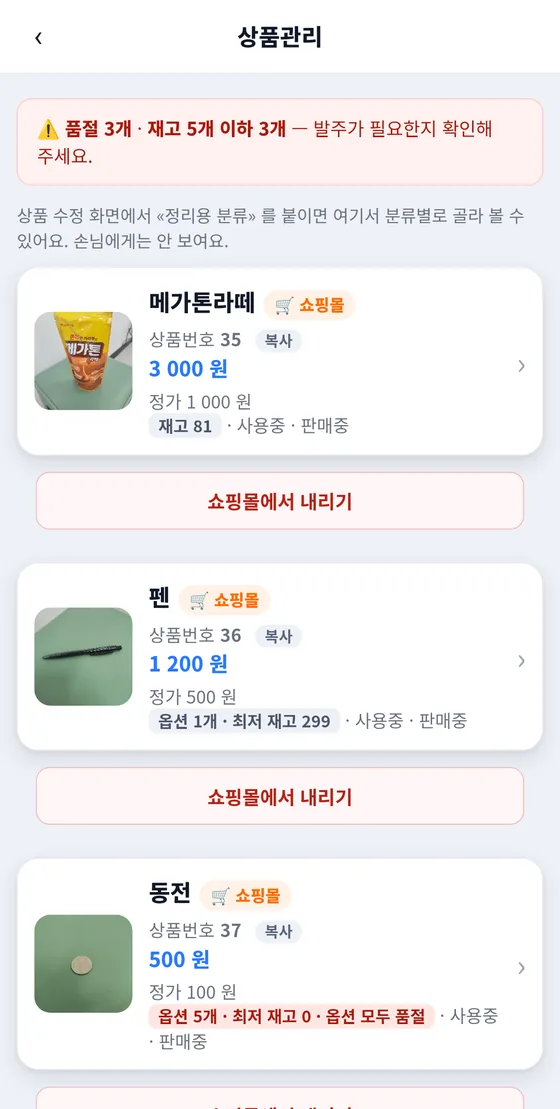
Handle product registration, order intake, entering tracking numbers and shipping alerts in the app. You also set earning rates, review rewards and usage limits yourself.
- Store mode: Restaurant · Online shopping mall
- Reply to reviews as the owner
- Mileage is a full-member benefit
On the store PC,
use Gpay POS
Install it on a Windows PC and use it for order intake, payments, the kitchen screen, receipts, the cash drawer and the customer display. It checks for a new version every time it starts — when the prompt appears, just click “지금 다시 켜기” (Restart now).
- Get the installer from the Download page
- There's also a guide for new-PC setup and reinstalling
- The user guide comes with screen images
Joining starts with a single inquiry
Approved stores appear on the app's map and in search.
- Merchant inquiry
Call 1566-4250 (weekdays 09:00–18:00 KST, lunch 11:30–12:30).
- Registration · Contract
Our team registers your store and guides you through the contract.
- Register your menu in the app
Log in to the Gpay Store app, upload photos and prices, set the number of tables, then save and print the table QR codes.
- Open for business
Turn on the “영업중” (Open) switch to start taking orders. Try a test order first.
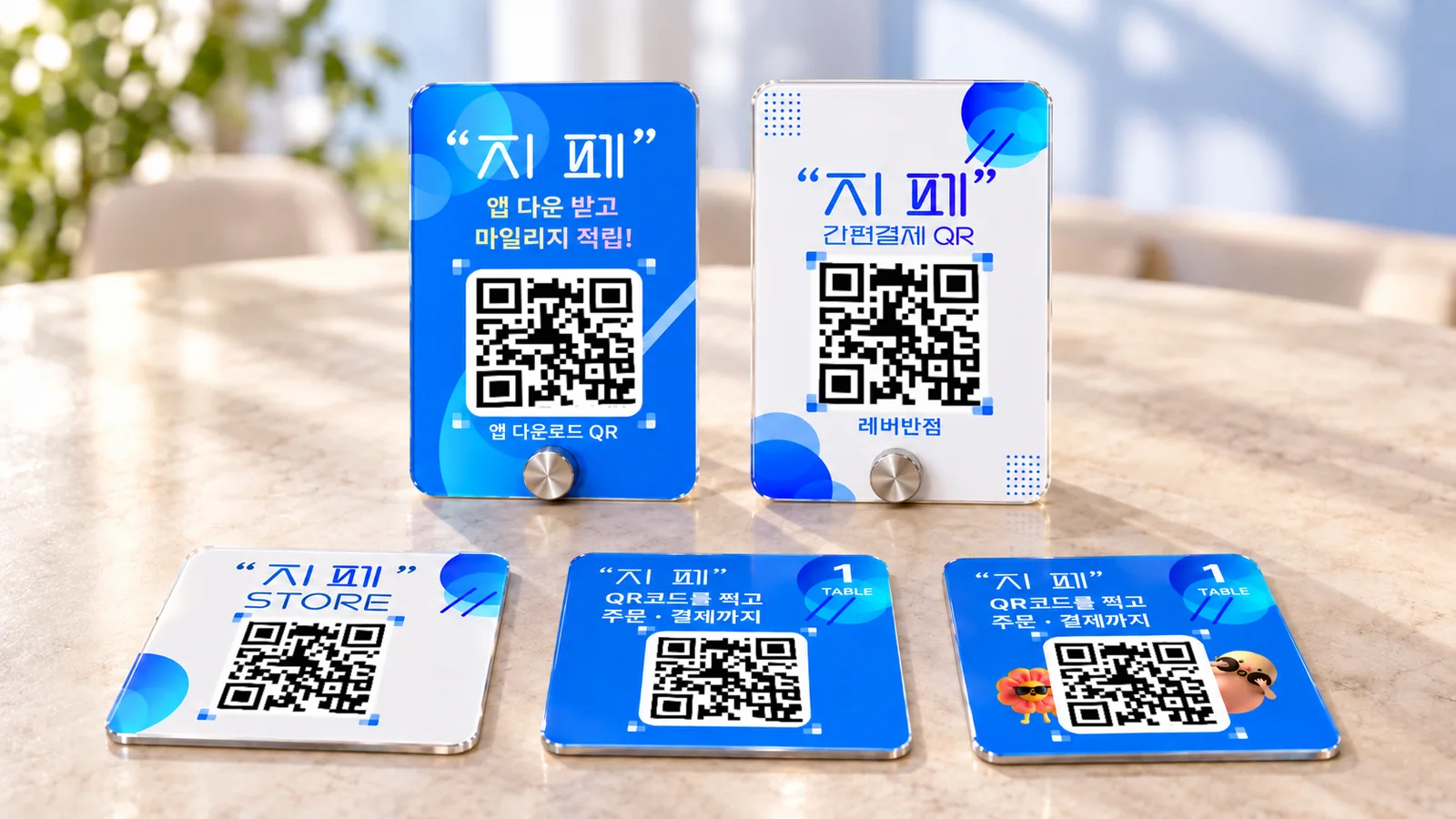
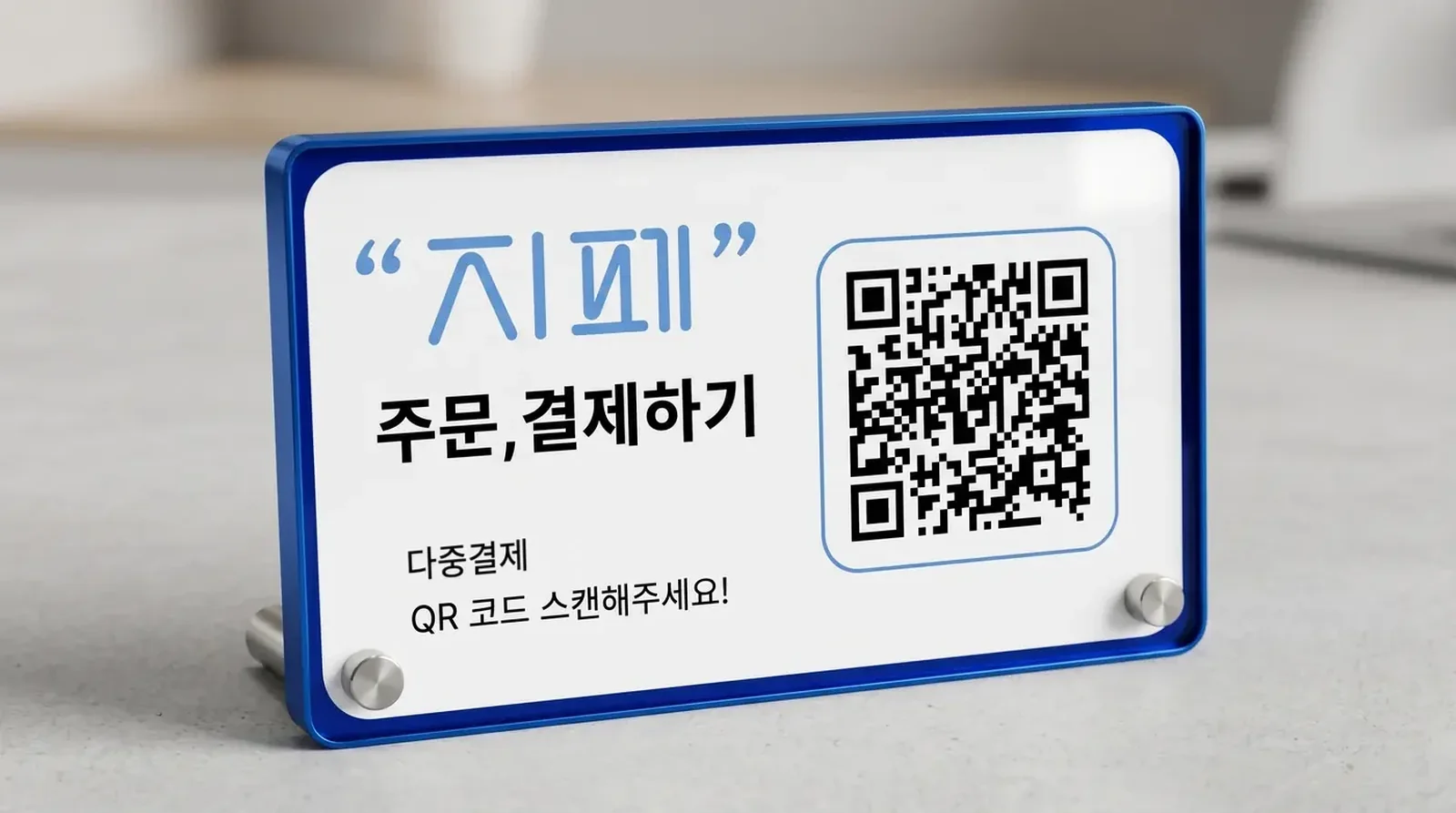
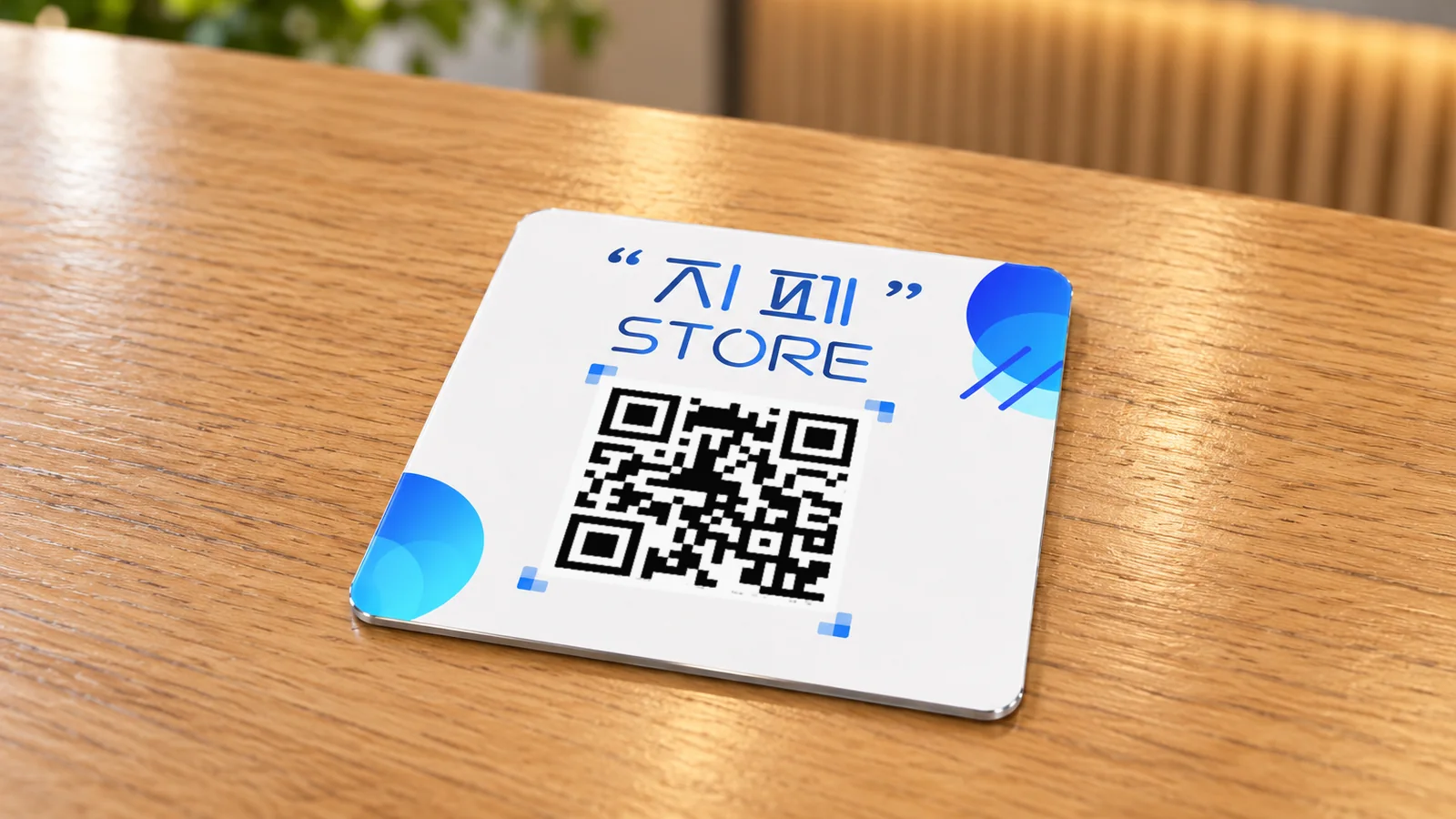
Seen right in the store:
promotional materials for merchants
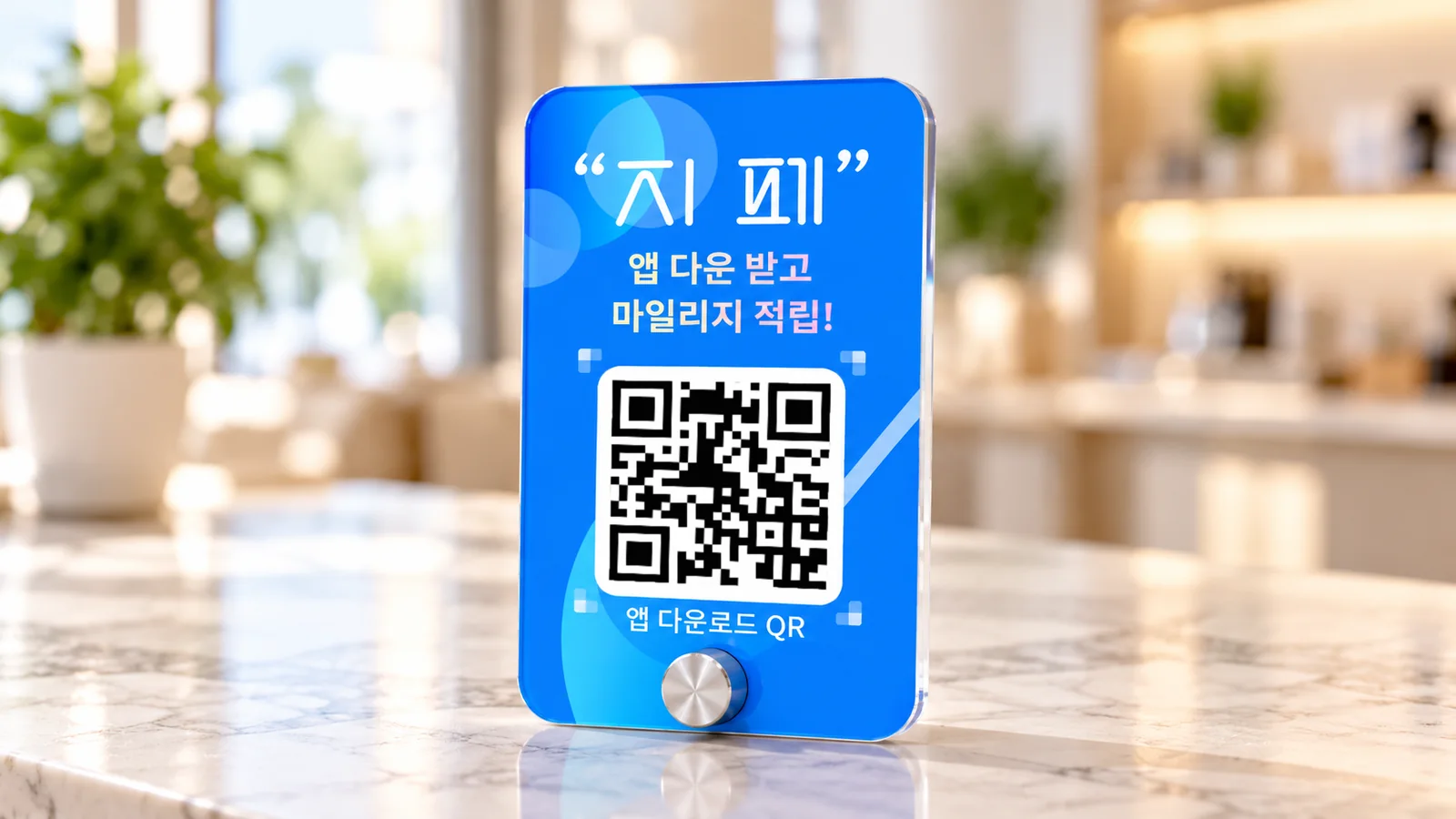
One QR scan connects customers straight to Gpay. Types and how to apply are explained on the Add-on services page.







Questions merchants often ask before joining

Call our contact center at 1566-4250 (weekdays 09:00–18:00 KST, lunch 11:30–12:30) and a representative will guide you through registration and the contract. After signing, register your menu in the Gpay Store app, then create table QRs and put them up.
We don't charge a platform brokerage fee. Card payment fees and paid merchant services apply separately. See the Merchant Terms of Service and Operating Policy for details (Korean).
Menu and sales management happen in the Gpay Store app. The table and kitchen screens, receipts and cash drawer run on Gpay POS, the PC program.
Set store mode to restaurant or online shopping mall and only the relevant features are shown. For a shopping mall, you handle everything from product registration and tracking numbers to cancellations and returns in the app.
Delivery is coming soon.
Your store, too —
so no one waits in line
Merchant and partnership inquiries 1566-4250 (weekdays 09:00–18:00 KST, lunch 11:30–12:30)
※ Card payment fees and paid merchant services apply separately.