
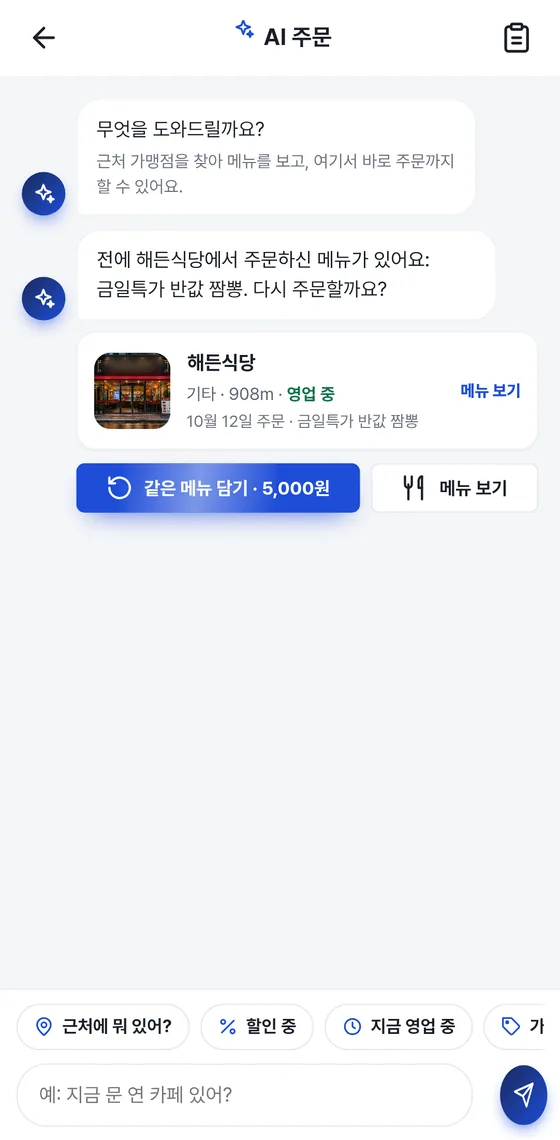
AI ordering
Ask in plain words and the AI answers. Just say “What's nearby?” and it shows merchants within 2 km along with distance, open/closed status and discount rate — tap a menu item to order right away. Uses an external AI service (OpenAI).
Guide
Learn how to use the Gpay member app, the Gpay Store app and the Gpay POS store PC program.
Install the app, complete identity verification and card registration, and you're ready to go.
Search for Gpay (지페) on Google Play or the App Store and install it.
Open the app and tap the “회원가입” (Sign up) button.
Agree to the Terms of Service and verify your identity with your mobile phone.
Enter your ID, check for duplicates, then set a password. The referrer's phone number is optional.
Enter the ID, password and approval number you receive, then tap the “확인” (OK) button to finish signing up.
Add the card you'll use under “마이” (My) ▸ “카드관리” (Card management).
Full-member benefits (multi-card payment, AI ordering, Quick Pay, mileage) unlock.
Ask in plain words and the AI answers. Just say “What's nearby?” and it shows merchants within 2 km along with distance, open/closed status and discount rate — tap a menu item to order right away. Uses an external AI service (OpenAI).
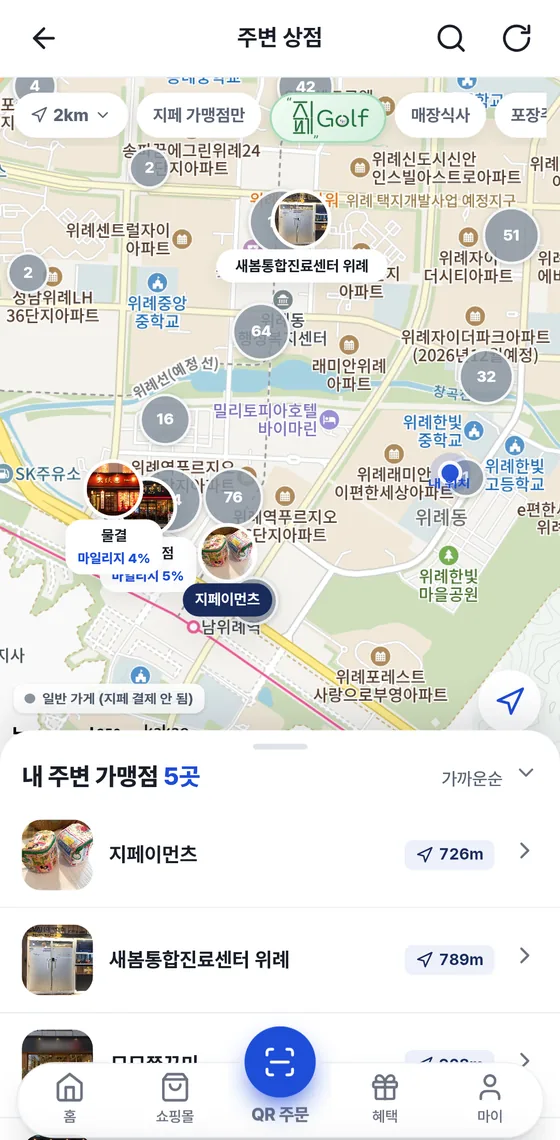
Merchants within 2 km or 5 km of your current location are shown on the map. Narrow them with the dine-in, takeout and shopping-mall filters, and check distance and mileage earning rate in the list below, nearest first.
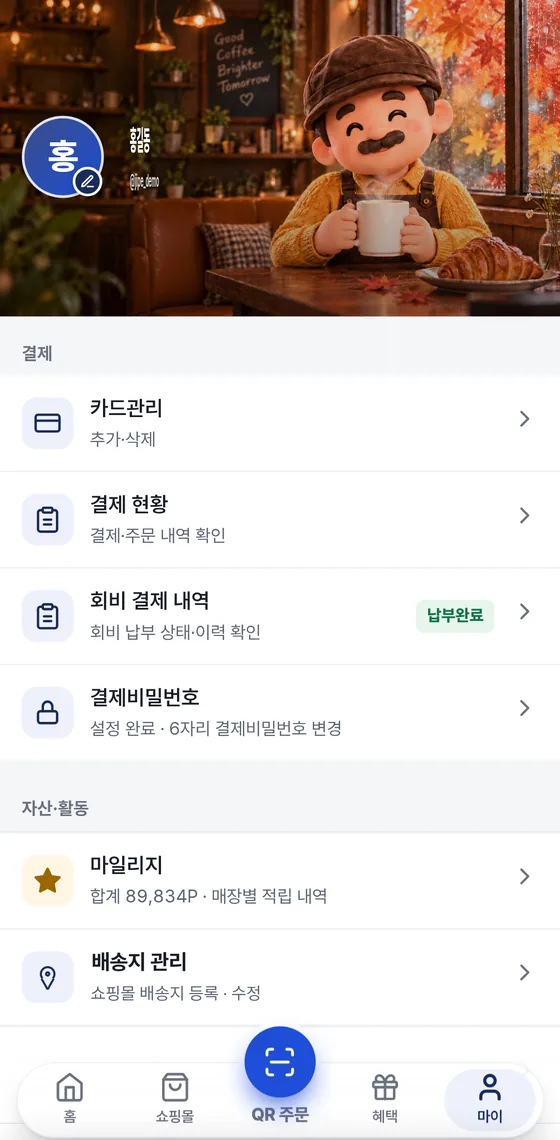
Card management, payment overview and your 6-digit payment password are all in one place. Turn on fingerprint or Face ID to confirm payments quickly.
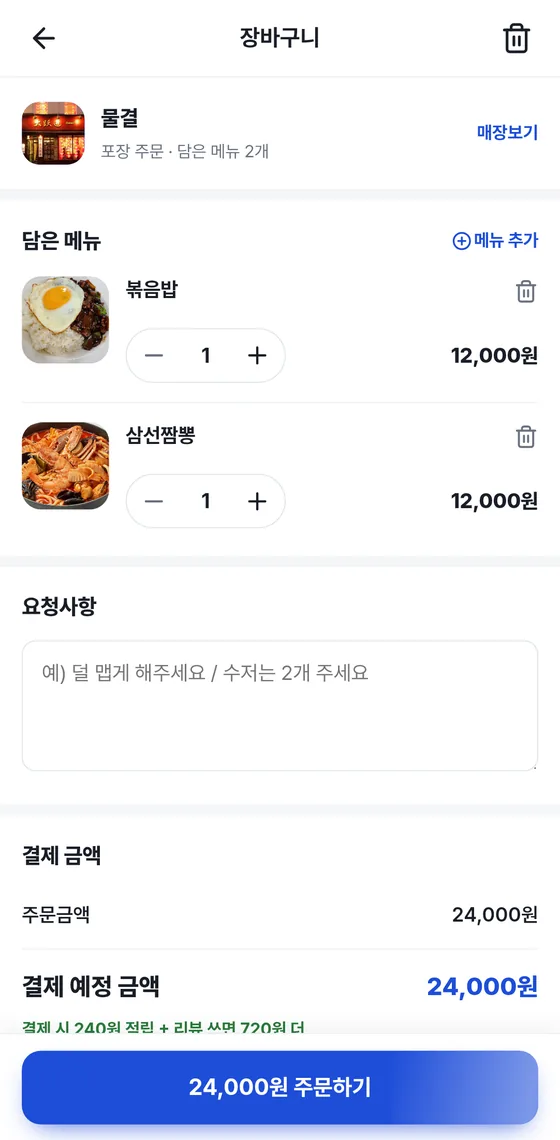
For takeout, choose a pickup time and pay. In the shopping mall, search by product or merchant name, and register your shipping address ahead of time to speed up checkout. Each product shows its discount rate and mileage earning rate.
After signing up, set your payment password on My page, and your identity is verified every time you pay.
Open the payment password setup menu.
When you start setting it up, you verify your identity.
Enter the same number once more to confirm.
It's applied automatically whenever you pay. You can turn on fingerprint or Face ID too.
Never share your PIN with anyone. Avoid easy-to-guess combinations such as your date of birth, phone number or sequential digits (e.g., 123456), and change it regularly.
Merchant onboarding starts with our contact center. After the contract, register your menu in the app and open for business.
Call 1566-4250 (weekdays 09:00–18:00 KST, lunch 11:30–12:30).
Our team registers your store and guides you through the contract.
Log in to the Gpay Store app and add photos and prices for the menu items and products you sell.
Set the number of tables and you can save and print all the table QR codes at once.
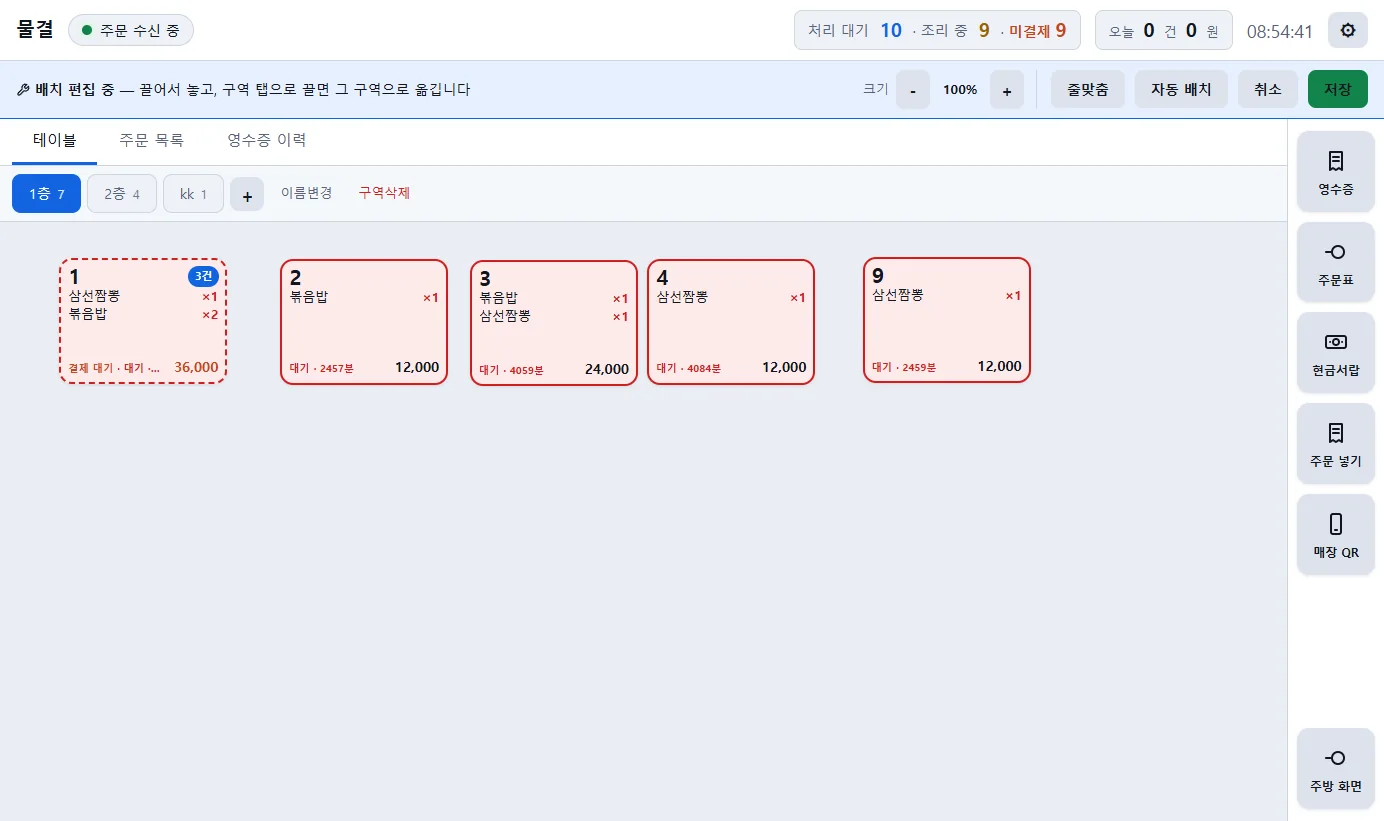
Install Gpay POS on a Windows PC and try a test order.
When a customer order comes in, an alert sound lets you know right away.
Check sales by day, week or month.
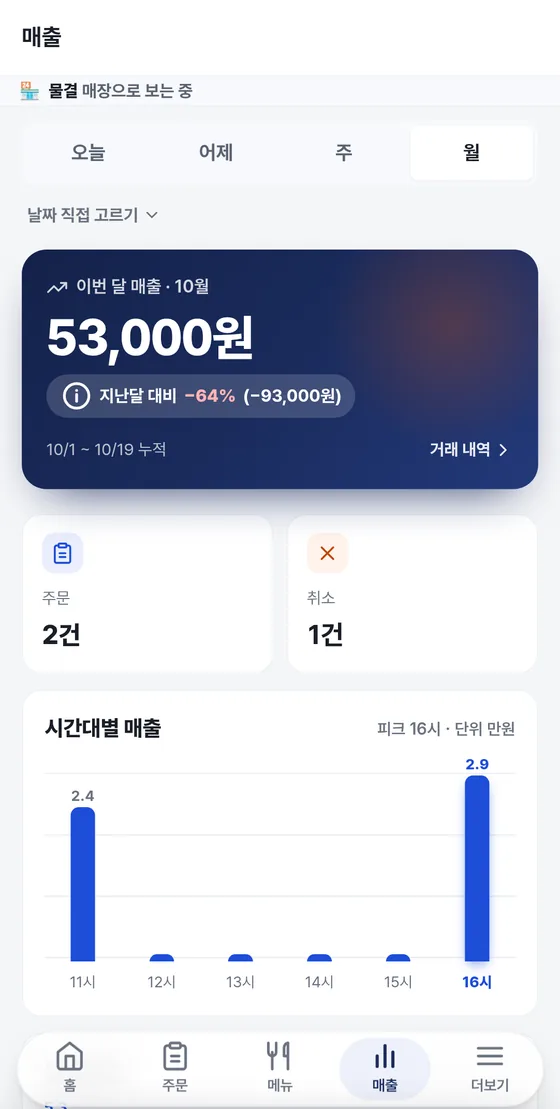
See today's sales and order count at a glance. Sales for the last 7 and 30 days, payment trends by day of the week and top-selling menu items are all laid out on one screen.
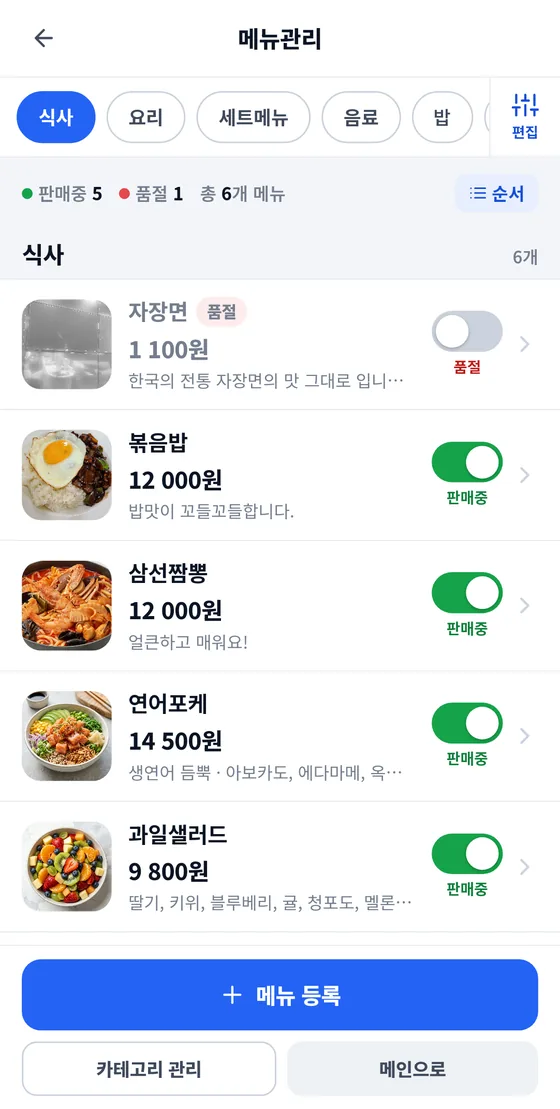
Manage your menu by category and change the display order. Edit the photo, price, discount rate and description of each item, and mark an item sold out or back on sale with one button.
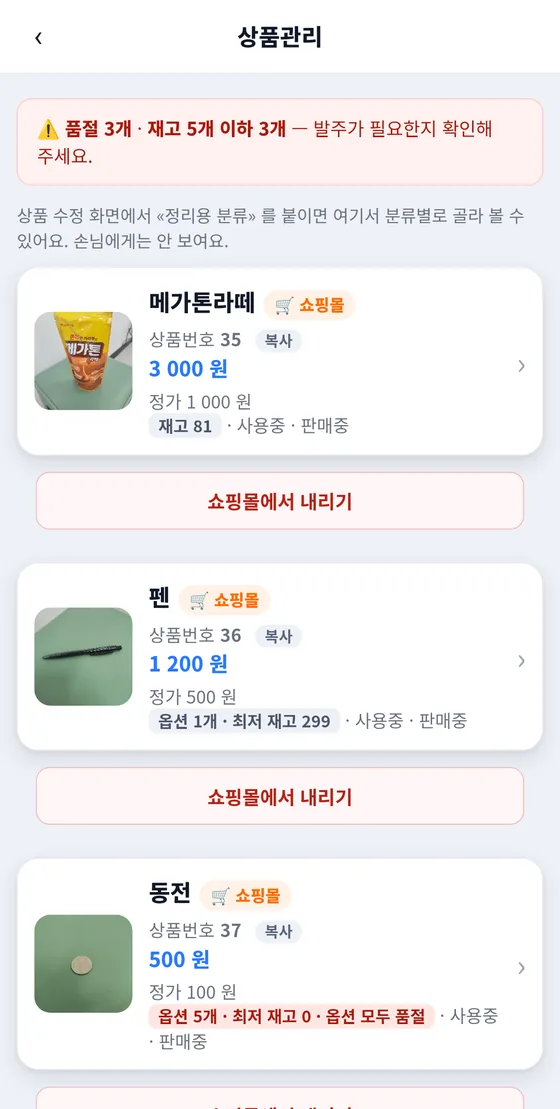
Register products to sell in the shopping mall. Add photos by taking a picture or choosing from your album, enter the product name, list price, sale price and cost (not shown to customers), and you can start selling right away.
Use the “영업중” (Open) switch to open and close order-taking. Choose restaurant or online shopping mall as the store mode and only the relevant features appear. From here you can also reach information management, business hours and staff management.
A program for taking orders and payments on the store PC. For first-time setup, see the installation guide; for everyday use in the store, see the user guide. For the merchant screens (Home, Orders, Menu, Products, Sales, Settings), see the restaurant or shopping-mall guide that matches your store type. The guides are available in Korean only.
From signing up for the Gpay member app to ordering, payment, the shopping mall and mileage — explained step by step with real app screens.
How to run your business with the Gpay Store app — from opening for business to menus, products, sales and store settings — explained with real app screens.
Covers the features used in the store every day — from the table screen and order entry to payment QR, cash payment, receipts and kitchen order slips — with screen images. It also includes solutions to frequently asked problems.
The steps from downloading and installing the program to logging in with your store account for the first time. It also covers connecting the receipt printer and cash drawer, and first-time setup.
For owners who run a restaurant. Explains how to use Home, Orders and Kitchen, menu registration and editing, Sales and More (Settings) in the merchant screens, with screen images.
For owners who run an online shopping mall. Covers checking orders and handling shipping (uploading tracking numbers, shipping lists, printing A4 order sheets), cancellation and return requests, product registration and categories, and viewing sales.
New features and fixes are delivered as updates.
The program checks for a new version every time you start it. When the prompt appears, click “지금 다시 켜기” (Restart now) to apply it. You don't need to reinstall.
When a new version is out, you can update right inside the app. You can also turn on automatic updates in Google Play and the App Store.
For anything not covered in the manuals, please reach out to our contact center. We reply within 1 business day.